Upload a File
To upload new assets, click the Upload from computer button located at the top right corner of the screen. This opens the upload dialog.
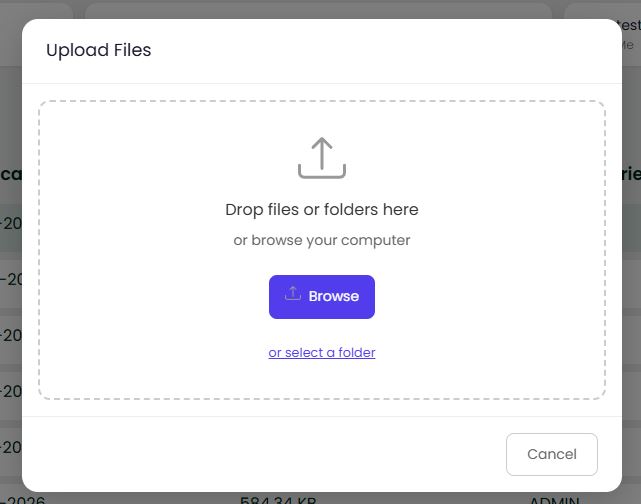
You can drag and drop files or folders directly into the dialog, or click Browse to select files from your computer. You can also click select a folder to upload an entire folder at once.
Uploading a 3D Model
When you upload a 3D model (.glb file), the dialog will display 3D Settings with additional options that control how the asset behaves once spawned in-world:
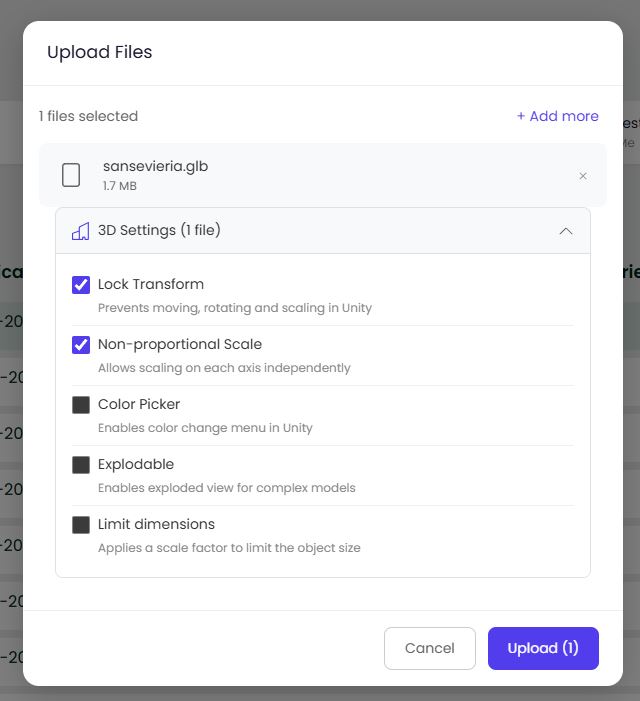
| Flag | Purpose |
|---|---|
| Lock Transform | Prevents moving, rotating and scaling in Unity. |
| Non-proportional Scale | Allows scaling on each axis independently. |
| Color Picker | Enables color change menu in Unity. |
| Explodable | Enables exploded view for complex models. |
| Limit dimensions | Applies a scale factor to limit the object size. |
Click Upload to confirm or Cancel to discard.
Uploading Other File Types
When you upload other file types (images, videos, documents), the system will automatically generate a thumbnail and upload the file into the folder you are currently viewing.
Currently supported file formats:
- Images: .jpg and .png
- Videos: .mp4
- 3D Models: .glb
- Documents: .pdf
The maximum size for each upload, which includes the combined size of the file and the thumbnail, cannot exceed 20 MB.